Saturday, June 21, 2008

Best Free Software's For Windows

windows Great News Guys! My two software Winbubble and Winguggle was added to this Great list of software by Calvin. His list of Software's are great and most of them are useful. When I got a problem and dilemma about WinBubble, He always there to encourage and try to answers every questions I ask. So what's the result? It was awesome! Most of his suggestions rocks! Better Visit and Ask him now. Enjoy and Don't forget to create a restore point first or else it might damage your PC. JOKE :D

Enjoy Learning Windows!


BREAKING NEWS: WinBubble already reached it's peak! 1,110,000+++ Google results! I will now declare WinBubble 1.73 as the most popular version of WinBubble.


Read More:

FREE PHP and MySQL Hosting, Web Hosting For Everyone!

"Access is denied", opening a folder in Windows Vista/XP

Unlock for Us: Windows Vista Unlocks, News, Tips and Tweaks

Thursday, June 19, 2008

Add "Remove Temp Files" to Right-Click Menu

Clear and erase your Temporary Files Easily

Free-up more space in your Hard drive! After Reading some questions on How to Clean / Remove temporary files manually in Windows Vista and XP. Thankfully, Something pops-up in my head, If I will create a small program or script and be able to delete the temporary files in just one click, That would be Great!

Command For Clearing Internet Explorer Temp Files, Click here

Delete %Temp% files and folders (User Temp Folder), and Windows Temp Folder in Windows Vista

If WScript.Arguments.Count > 0 Then
Set objApp = CreateObject("WScript.Shell")
objApp.Run "cmd.exe /c " & Chr(34) & "rmdir /S /Q %temp%" & Chr(34)
objApp.Run "cmd.exe /c " & Chr(34) & "rmdir /S /Q %SystemRoot%\temp" & Chr(34)
Else
Set objLaunch = CreateObject("Shell.Application")
objLaunch.ShellExecute "wscript.exe", Chr(34) & WScript.ScriptFullName & Chr(34) & " RunAsAdmin", , "runas", 1
End If

Open Notepad > Just Copy and Paste the Code Above and Save the the file to Any filename that you want with extension ".vbs"

e.g. deltempfiles.vbs

Or If you're afraid to commit a mistake, just Download the files,

Vb Script Files To Remove Temp Files

Adding the Script to Context Menu:

1. Download WinBubble

2. If you prefer to manually add the entry to Computer, Desktop, Start Menu, Folders Context Menu, Read here:

Adding your applications to Context Menu (Right-Click Menu)

3. Using WinBubble:

Go to Miscellaneous Tab > Click the Computer Button > Type Any Name. In this guide, let's try "Remove Temp Files" > Click the Browse Button and locate the VB Script File > Add wscript.exe before the path and enclosed the path in a quotation mark (").

Name: Remove Temp Files

Command: wscript.exe "C:\Tools\deltempfiles.vbs"

Click the Add Button. That's it!

Deleting %Temp% Folder Files Only

C:\Users\[UserName]\AppData\Local\Temp

If you want to clear the User's temporary Folder only because UAC will not prompt to elevate the command:

Repeat the steps from 1 to 3 and use the script below:

Set objApp = CreateObject("WScript.Shell")
objApp.Run "cmd.exe /c " & Chr(34) & "rmdir /S /Q %temp%" & Chr(34)

Download: VbScript Files To Clean your Temp Files

Also, you can use this to clear your Personal Temp Folder when Windows Starts. Just drag the Shortcut to Start Menu > All Programs > Start Up Folder.

That's it!

Want to learn How it was created?

Read this first:

How to Run VBScripts as Administrator in Windows Vista

Enjoy!!!

More Articles:

[Vista] Hibernate Button is gone

Windows Vista SP1 File Removal tool: Free up more space on your hard drive

Internet Explorer Command to Delete Temporary Files, All History, Passwords and Forms

Google Chrome Temporary Files location (Cache), Bookmarks/Favorites Database Hack!

Friday, June 13, 2008

Hacking WinBubble: Customizing the Restore Point Creator designed for Windows Vista

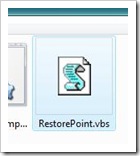
RestorePointAfter posting the article about adding "Create a Restore Point" to your Context Menu. Some Users requested on how to create a Shortcut for the tool, use a Shortcut Key for launching the command and changing the restore point name.

Here's what you want guys... Hack WinBubble!


Creating a shortcut to desktop

1. Download WinBubble and Extract the zip file.

2. Open the "Tools" folder and locate RestorePoint.vbs as shown in the picture above.

3. Create a Shortcut to your desktop: Right-Click > Send to menu > Desktop (create Shortcut). That's it!

Shortcut Key to Create a Restore Point

Drag it to your Quick Launch Taskbar and use Win+Icon Position to launch the script e.g. Win+1, Win+5...Win+9

Changing the Restore Point Name:hackingwinbubble

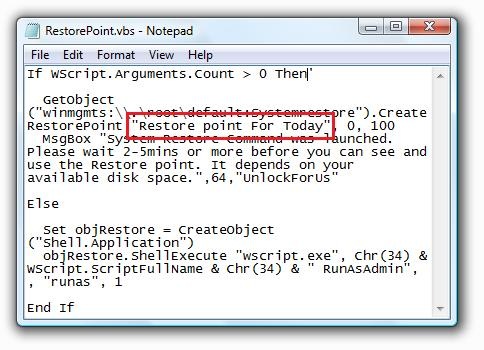
1. Go to "Tools" folder and open RestorePoint.vbs in notepad: Right-click > Edit

2. Just change the Restore point name "Restore point for Today" to any name that you want, example: "Software's installed for testing"

Learn and have a clue on how it was created in Windows Vista? Read this first.

How to Run VBScripts as Administrator in Windows Vista

Enjoy Learning Windows!

Wednesday, June 11, 2008

Quick Tip: How to Find and Get the Windows Directory Name or Folder

start menu

"Hello Lawrence, My brother's computer have two OS installed, Vista and XP on separate drives. How can I find, get and access the Windows Directory easily? I mean I can go there directly. I remember he installed two Windows XP on the same drive. Thanks in Advance... - Fred"

There are several ways to do this in Windows Vista and XP... Here's the Quickest way to find the correct folder. Note: Login first, Of course :)

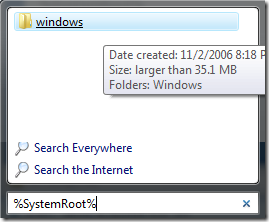
1. In Windows Vista, Click the Start Menu Button and type,

%SystemRoot%

As shown in the picture above > To open, just click the folder. That's it!

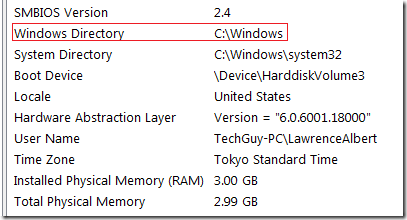
2. Open the Run Window by pressing Win+R and type: MSINFO32

msinfo32 

Afterwards, find the location from the System Summary. Simple isn't it?

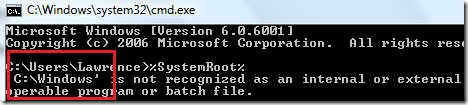
3. You can also see the location in the command prompt. Press Win+R, type: CMD to launch and use %SystemRoot% again.

command prompt

Enjoy Learning Windows!!!

More Quick Tips:

A Windows Vista Power Button that actually Turns off your PC

Quick Tip: Create a shortcut and Go directly to Device Manager

Opening Network Connections Window easily

Turn Off Aero using a Keyboard Shortcut

Tuesday, June 10, 2008

Create a Shortcut for Shutdown, Restart, Sleep, Lock and Hibernate Button

shutdown Some tips are really useful that it can make your life easier day by  day. Do you remember the previous tip that when you install Windows Vista and pressed the Start menu shutdown button, instead of shutting down it turns your computer to sleep? How about the Middle Mouse Button Hack? Here's another Create a shortcut and use Shortcut Key!


1. Right-Click your desktop > New > Shortcut

2. Use and paste the commands below

Shutdown your Computer

Shutdown.exe -s -t 00

- Force all applications to close and shutdown immediately

Shutdown.exe -s      (After 30s...)

Restart Computer

Shutdown.exe -r -t 00

Sleep Computer

Rundll32.exe Powrprof.dll,SetSuspendState Sleep

Lock your Computer

Rundll32.exe user32.dll LockWorkStation

Hibernate Computer

Rundll32.exe Powrprof.dll,SetSuspendState Hibernate

That's it!

If the Sleep or Hibernate command is not working. Check first if your computer supports these sleep states: Open the command prompt (cmd.exe) and type, powercfg -a

The following sleep states are available on this system: Standby ( S3 ) Hibernate Hybrid Sleep
The following sleep states are not available on this system:
Standby (S1)
        The system firmware does not support this standby state.
Standby (S2)
        The system firmware does not support this standby state.

Change the icon

You can search the web and change the icon or simply use   

%SystemRoot%\system32\SHELL32.dll icons

How? Right-Click > Properties > Shortcut Tab > Change Icon Button

That's it!

Use Shortcut Key to Shutdown your computer

To have an idea, I recommend reading this first, Speeding Up! Using Quick Launch Toolbar's Keyboard Shortcut

Drag the Shortcut to your Quick Launch Taskbar And press Win + Icon Position, e.g. Win+1

Useful? Enjoy!!!

Sunday, June 8, 2008

Add "Create a Restore Point" to your Context Menu

While walking in the midst of the crowd, sometimes simple ideas rocks! It just Popped-out in my mind. Tons of Software out there that usually created by known companies and it feels bad when it trashes your laptop/pc. What will you do to prevent that?

RightClickMenu

Simple Solution: Use System Restore to Undo Changes if problems occur, but How do you create a System Restore point?

As a Geek, In my experiences with Windows Vista, Windows System Restore is the most useful thing that Microsoft created. So, Before installing or running any application Create a Restore point first.

There are tons of information out there but the most simple one is using WinBubble and Add the option to your Right-Click Menu.

1. Download Winbubble

2. Click the "Create a Restore Point" option and press "Alt-A" or simply click the Apply Button

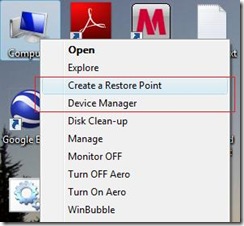
How to use: Start Menu > Right-click the Computer Option > CREATE A RESTORE POINT

or Right-click the Desktop Computer Icon > CREATE A RESTORE POINT

That's it...

If some software trashes your pc, To Restore Search "System Restore" through your Start Search and open the tool.

1. To Restore the most Recent Backup just click the Next Button

2. If that doesn't work, repeat the steps above and Choose a different Restore point. Maybe the oldest one is better.

Simple isn't it? Enjoy Learning Windows!!!


More Articles:

[Help] How to Fix, Repair and Restore (Recover) Windows Vista Easily

Setup a Backdoor in Windows Vista Welcome Screen

WinBubble: Hide Any Drives from Computer Window in Windows Vista/XP

WinBubble: Enable/Disable Changing of Wallpapers

Registry Editor Tip: Change the Open Folder Icon, Helps in Finding Any Registry Keys and Values

Disable Auto Play in All types of Media

Friday, June 6, 2008

How to Run VBScripts as Administrator in Windows Vista

Some programmers are asking why their Restore Point Creator Program written in Vb.Net/C# doesn't work in Windows Vista. It will not work because of UAC. To run the program, you must open or launched it as administrator.

The same way with VB Script programming in Windows Vista. I wrote a simple alternative way to launch scripts as Administrator.

Here:

If WScript.Arguments.Count > 0 Then

'Your VB Script CODE here

Else

Set objLaunch = CreateObject("Shell.Application")
obj
Launch.ShellExecute "wscript.exe", Chr(34) & WScript.ScriptFullName & Chr(34) & " RunAsAdmin", , "runas", 1

End If

It will elevate the script before launching your code.

Read more: Universal Script Template in Elevating Commands as Administrator in Windows Vista

Easy? Enjoy!

More Articles:

How to Get the Windows Experience Index (WEI) score of a Network Computer

Desktop Window Manager Command list

YouTube Hack!