Saturday, May 31, 2008

Notes Before Taking the Ownership of File and Folder

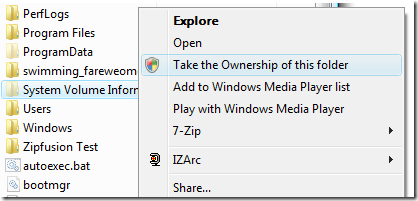
takeownfolder

One of the most useful tweaks that the next version of WinBubble will have is taking the ownership of File and Folder option separately. This solves the problems regarding "Access Denied" while moving, deleting, editing, renaming and opening files and Folders in Windows Vista.

But one thing that I've noticed in all Tips and Tricks out there.  Nobody is telling us How to Restore the Settings after Taking the Ownership of File and Folder.

This is it!

How to Backup File/Folder Permissions

Do it Manually

Open the notepad or find some papers and write all information's for future references.

1. Right-Click > Properties > Security Tab

2. Write-down the Group/Usernames and it's permissions

Or just create a screenshot by pressing Print Scrn Key or Alt+Print Scrn for capturing the window

Create a Restore Point

How to Create a restore point in Windows Vista:

In Start Menu Search, type "System Restore" > Click open System Protection

createrestorepoint

Click the Create Button and type any description that you want.

That's it!

How to Restore the Settings after Taking the Ownership of File and Folder

SystemVolumeInformation

Click Advanced > Edit Button

AddRemovePermissions

Example: In C:\System Volume Information, SYSTEM is the original entry that is permitted to access this folder. But Once Taking the Ownership of Folder is used. It will add your Logon Name, administrators and include all inheritable permissions from C:\ by default.

To restore: Remove them all and later Click the Add Button and Enter the Object name "SYSTEM". Finally, Hit the Apply Button and Choose Continue...

To remove them all, Just uncheck "Include inheritable permissions from this object's parent" and Click the Remove Button for the first two options (Current user and Administrators).

If you can't do it using the above procedure, use Windows System Restore.

Type and Open System Restore in Start Menu Search. Choose the restore point that you have created earlier.

That's it! Enjoy Learning Windows Vista!!!

Related Articles:

"Access is denied", opening a folder in Windows Vista/XP
Unlock for Us: Windows Vista Unlocks, News, Tips and Tweaks

Thursday, May 15, 2008

Quick Tip: A Windows Vista Power Button that actually Turns off your PC

A very simple concept that makes us ask a question, Why Microsoft set the default to turn to sleep instead of shutting down?

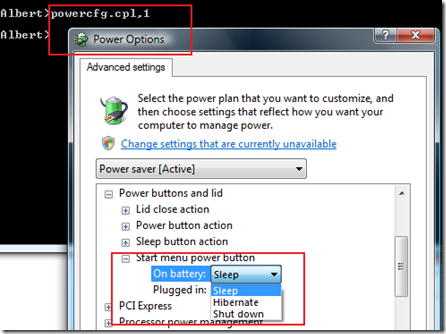
powercfg

Here's how:

1. Open the Run Window. If you can't see the option in your start menu, just press Windows Key+R.

2. Type cmd and press enter > enter powercfg.cpl,1 without spaces, Scroll-down and find the option "Startmenu power button" and Finally, change the options to Shut down as shown in the picture above.

Easy? Enjoy!

Quick Tips:

How to Open/Load .ISO Files in Windows Vista/XP

Secure logon for Windows XP and Vista

Hide your computer in the Network

Partitioning your Drive in Windows XP without destroying your files

Tuesday, May 13, 2008

WinBubble Tip: Adding Device Manager to Right-Click Menu in Windows Vista

Recently, I published a Quick Tip in accessing the Device Manager directly. After a few moments of thinking. Why not put it in my Context Menu (Right-Click Menu)?

Using WinBubble you can Add the Device Manager to My Computer, Desktop, All files, folders, or even in Network Icon Context Menu!

devicemgr

Download and open WinBubble, go to Miscellaneous Tab, Click the Computer Button and input these values:

Name: Device Manager or any

Command: mmc.exe C:\Windows\System32\devmgmt.msc

That's it. :)

Recent News: WinBubble now supports this feature!!! you can easily add this to your Computer Icon Right-Click Menu by simply Choosing the option and press "Alt-A". That's it!

Enjoy!!!

More WinBubble Tips:

WinBubble: Hide Any Drives from Computer Window in Windows Vista/XP

WinBubble: Enable/Disable Changing of Wallpapers

Registry Editor Tip: Change the Open Folder Icon, Helps in Finding Any Registry Keys and Values

Disable Auto Play in All types of Media

Monday, May 12, 2008

WinBubble, WinSupersite Software Pick of the Week

"If you're looking for a TweakUI replacement for Windows Vista, there are several contenders, but the one that's closest in spirit and functionality is, I believe, WinBubble, a freeware application by Lawrence Albert" - Paul Thurrott

Software pick of the week: WinBubble

Paul Thurrott is one of the few authors, famous Tech writers that I always respect and look upon. He is the host of Windows Weekly at TWiT.TV with Leo Laporte, which attracts over 80,000 downloads for each episode.

I never thought Paul Thurrott and Woody Leohnard will choose my software as TWEAKUI REPLACEMENT FOR VISTA.

A Dream Come True...

Three Stars in the Sun

My favorite Vista tweaker is a very unassuming, free little program from Lawrence Albert called WinBubble… it sure beats the daylights out of editing the Registry by hand. And the results will perk up your day. Guaranteed.”  - Woody Leonhard, Windows Secrets Newsletter

"it's hard to find something that this remarkable tweaking program can't do. Whether you're a dedicated Vista tweaker, or just getting started, there's something here for you. - PCWORLD.com"

The third, WinSuperSite Software Pick of the Week

Thank you very much!!!

Documentation:

Unlocking WinBubble Part 1 Tips and Tweaks

Unlocking WinBubble Part 2 Icon Customizations

Unlocking WinBubble Part 3 Securing your desktop

Unlocking WinBubble Part 4 Screensaver Customizations

Unlocking WinBubble Part 5 Optimize your Windows Vista Experience

Unlocking WinBubble Part 6 More Security options

Unlocking WinBubble Part 7 Miscellaneous Tweaks

Unlocking WinBubble Part 8 Changing Windows Vista Icons easily

The Tweaking Toolbox: Build your Own

Adding your applications to Context Menu (Right-Click Menu)

NEW "My Tweaker Tool", Create your Own Tweaker

Sunday, May 11, 2008

Quick Tip: Create a shortcut and Go directly to Device Manager

DeviceManager The Device Manager is one of Microsoft most useful diagnostic tools. It provides a graphical representation of hardware that is connected or attached on the computer. Also, It lets you see which resources is associated with that hardware.


How to access it directly?

Go to Start Menu Search or Run window and type devmgmt.msc

To create a shortcut, Right-Click to any blank spaces on the desktop > Choose New > Shortcut and enter the following path:

c:\windows\system32\devmgmt.msc

Change the location (c:\Windows) if Windows folder is located in a different path.

Enjoy!!!

More Articles:

Registry Hack! How to Launch Applications using the Middle Mouse Button

NEW Shutdown, Restart, Lock, Sleep Or Hibernate your Computer using the Middle Mouse Button

NEW Eject your CD/DVD using a Keyboard Shortcut

How To Activate Flip 3d using the Middle Mouse Button / Scroll Wheel Button

How To Turn Off Aero using the Middle Mouse Button

Eject your CD/DVD using the Middle mouse button

Saturday, May 10, 2008

Quick Tip: Opening Network Connections Window easily

windows Despite Microsoft is making networking much easier in Windows Vista, they made it very difficult to open your network connections list or Window.

Here's a quick solution...

In the Start Menu Search or Run window, type ncpa.cpl and press ENTER.

To put a shortcut of Network Connection window on desktop,
create a folder called

Network Connections.{7007ACC7-3202-11D1-AAD2-00805FC1270E}

Simple isn't it? :)

Easy? Enjoy!!!


More Articles:

Quicktip: How to prolong your Laptop Battery

How to Share Internet Connection in Ad hoc Network

Kill 'em All: Close Multiple Programs at the Same Time

iUnlockThis! YouTube Hack

Branding your Windows Vista Computer

Enable the Two Hidden Aurora's in Windows Vista

Turn Off Aero using a Keyboard Shortcut

Friday, May 9, 2008

RegDevelop RAD Tool Plans

This is my licensing plans to my software(s) one to three years from now.

license plans

Well, As far as I know. At first, I don’t know what can I see about myself five years from now. But as I learned each sides (Close Source and Open Source Idealism). I think, there is a reason why we need some applications to be Close Source and other applications to be an Open Source Software.

They both have disadvantage and advantage.

The truth is, 18 months ago I have not seen any Open Source Code before. Why? I’m happy with my job as a Control Engineer and writing applications in my spare time offline.

As I go along learning all the stuff in the Internet. I have seen different cultures and sides.

If you ask me to choose which path I must take.

It depends on which users I will work for…

Linux, Mac or Windows?

It doesn’t matter

Hybrid - Open Source, Closed Source or Open Source

Any doesn’t matter.

So, It means you can create a software for Linux? Maybe, If the users insist and my experience is enough.

What If Microsoft, Google and other Open Source Guys Hire you to create a software?

Well, I don’t know if that’s possible. I’m a user centric person and if that happens… I’m going to do my best to work with Microsoft Users, Google or Open Source Users.

What matters most? The Users…