Friday, May 8, 2009

Simple Portable Drive Scanner

screenshot

Even if Anti-Virus Companies already optimized and tweak their Software, Still it consumes more resources than any software installed in your PC. Why? It’s running all the time. When you add them all… That is Huge!

If you have a 4-8 years old PC and rarely connected to the Internet. Just Uninstall All your Anti-Virus Software and create an application that will scan a Drive If needed.

This is also useful for Maintenance Purposes…

DISCLAIMER NOTICE: By reading this Article and using RegDevelop Software, All Programs from other manufacturer that will be added must follow the guidelines and terms of each Software Manufacturer. If you do not Agree, do not read and use the article below.

1. Download, Extract and Open RegDevelop > Drag the Button Control

properties

Change the Button Text to any name that you want.

2. In this example we will use the good old McAfee Command Line Tool.

Open and Download the latest SuperDAT:

ftp://ftp.nai.com/pub/antivirus/superdat/intel/

3. Create a New Folder (e.g. sDAT) inside the Tools folder of RegDevelop > Copy the SuperDAT File (sdat????.exe) inside.

Superdat

4. Extracting the File: “[path]\sdat????.exe” /e

In Windows Vista / Windows 7, Right-Click + Shift Key > Copy as Path > Press Win+R for Run Window > Right-Click and Paste > add /e to Extract

RunWindow

For Windows XP, Start Menu > Run > and use the syntax above

To Check, Open SuperDAT.txt inside the folder:

Message while extracting:

Uncompressing all files into C:\ReDevelop\tools\sDAT

Wait for these message:

Zip file extraction is successful.

5. You can now delete the original file.

6. Let’s go back to RegDevelop window and change the StartProcess property of the Button Control:

SYNTAX: tools\SDAT\scan /clean /all [drive letter]:

Example: tools\SDAT\scan /clean /all e:

If you have some background in DOS > Open CMD > go to the directory cd “[folder directory]” > customize the parameters by studying them first: scan /?

Button Properties

StartProcess tools\SDAT\scan /clean /all e:
Caption Any name

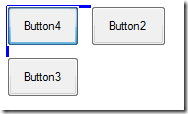
To Test: Click the Start Button and click the created button

scanning

7. You can also add some of the free tools by McAfee such as Stinger (Works in Vista and XP) and RootKit Detective (doesn’t work in Vista) using the same procedure.

Button Properties

StartProcess tools\Stinger\Stinger.exe
Caption Any name

8. If your a geek and experienced user I suggest to add the famous tool for Malware Detection HijackThis Executable. This tool is powerful for startup detection and other settings.

Button Properties

StartProcess tools\HijackThis\HiJackThis.exe
Caption Any name

9. To add more useful programs, download the Spyware and Adware Removal Program called SpyBot Search & Destroy.

Making it Portable: Install the Application and Copy the files in “C:\Program Files\Spybot - Search & Destroy” to [RegDevelop Folder]\tools\SpyBotSD\ folder

Note: Make sure to unhide the files first (Tools > Folder Option > View Tab > Uncheck “Hide Protected operating system files”

Button Properties

StartProcess tools\SpyBotSD\spybotsd.exe
Caption Any name

That’s it!

Sample Screenshot

screenshot

Enjoy!

Wednesday, May 6, 2009

How to Customize or Change the Welcome Screen Background in Windows 7

welcomescreendesigner 

At last! Microsoft allowed and added the feature that lets you change the Logon Background in Windows 7 easily…. Using the Registry or Group Policy Editor, You can now activate function.

Third-Party Software:

smallversion

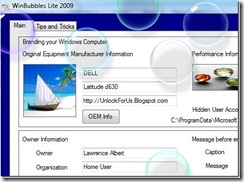
WinBubbles Lite 2009 includes a small version that will customize your Welcome screen easily in Windows 7. Just Click the PictureBox to Change, Click to Checked the “Activate First” option and press Alt-A. That’s it!

It was created using RegDevelop, like the screenshot above.

Geek Way:

Activation via Group Policy Editor Setting:

regedit

We will notice that it uses UseOEMBackground Value Name

Registry Key: HKEY_LOCAL_MACHINE\Software\Policies\Microsoft\Windows\System

Just Add and Set the Value Name to 1 (DWORD)

If your Windows Directory is C:\Windows, Add/Put a jpeg file here:

C:\Windows\System32\oobe\info\backgrounds\backgroundDefault.jpg

The  image must be less than 256kb. Just resize your jpeg files using ms paint, Gimp or Photoshop.

TIP: Checkout C:\Windows\Globalization\MCT\ for high resolution and amazing backgrounds… it’s FREE!!!

Creating Your Own Customization Software for the Tip:

My latest software RegDevelop, which let’s you create a Customization Software that can be edited and shared by everybody does the job very well.

If you want to learn more about the software, I recommend this design

regdevelop

Now you can create a Program to change it Safe and automatically…

Anyway, Using RegDevelop needs practice. maybe after 2-3 examples, you can do it fast without instructions.

Designing The User Interface

1. Drag a PictureBox. It will correspond to the User Account Picture because it is located in front of other controls.

2. Drag a Label Control and TextBox and arrange it according to your taste (The two are just dummy, for UI design only). You can change the Caption of the Label to any name that you want.

3. Add a CheckBox and Two Button Control. Change the Caption of the Two Button (“View” and “Restore”)

4. Finally, Add the Big PictureBox that corresponds to the Welcome Screen Background.

Settings

PictureBox2 (The most important)

Mode 2: Open From File Location  
Image

C:\Windows\System32\oobe\info\backgrounds\backgroundDefault.jpg

PictureBoxStyle

View and Set

PictureBox1 (For User Account Picture only…)

Mode 2: Open From File Location  

Image

any Bitmap or try this:
C:\Users\[Username]\AppData\Local\Temp\[Username].bmp

PictureBoxStyle is set to View

CheckBox1 (Activation CheckBox Setting)

CHECKED

RegKeyPath1

HKEY_LOCAL_MACHINE\Software\Policies\Microsoft\Windows\System

ValueName1 UseOEMBackground
DataValue1 1
ValueType1 DWORD
DeleteWhenUnchecked True

Button1

Settings  
StartProcess rundll32.exe user32.dll, LockWorkStation
WindowStyle Normal
Caption View

Button2

Settings  
StartProcess {PictureBox2} /r
   
Caption Restore

{ControlName} /r – restore the backup when the program was opened for the first time to a specified Control (e.g. PictureBox2)

That’s it! You have created a Logo Changer Third Party Software For Windows 7.

Tiny but Powerful Rapid Application Development software right?

You can make any custom light weight versions that will focus on what you want and what you need.

You can read more here: RegDevelop Introduction and functions

Most of the Websites said Mr. Rafael of WithInWindows.com found the registry tip. The registry setting is different but Thanks and good job…

Enjoy!

Tuesday, May 5, 2009

[Easy Fix] Enabling Registry Editor

During Windows XP days, getting around viruses or simply worms are very difficult. They spread unnoticeable and fast. Each of them has different characteristics and forms of infection. One of the errors you might get is this:

message

“Registry editing has been disabled by your administrator.”

If I only knew that I can share what I know to all of you by blogging… Maybe I already helped thousands of users before.

Anyway, here’s a quick fix in Windows Vista, XP and Windows 7 (If possible) and also, for those who believed Knowledge is better:

1. Download and open my utility WinBubbles. Go to the Miscellaneous Tab. In this example, you will be able to learn and update Winbubble options.

Let’s type “Disable the Registry Editor”. why disable? later…

tweakertool1

Push the Create my Tweaker Button and add this values

tweakertool2

Registry Key Path: HKEY_CURRENT_USER\SOFTWARE\Microsoft\Windows\CurrentVersion\Policies\System\

Value Name: DisableRegistryTools

Lastly, Click the Set Button. that’s it… Easy right? That’s the great thing about Winbubbles… The beginning of all my ideas.

checked

Now, you’ll notice that It was checked… that’s the reason.

To Fix: Just Unchecked it and Click the Apply my Tweak Button.

What if it is unchecked? Maybe the virus or other software uses the HKEY_LOCAL_MACHINE registry hive… so please RESET and recreate again using the path below:

HKEY_LOCAL_MACHINE\SOFTWARE\Microsoft\Windows\CurrentVersion\Policies\System\

Great right? Enjoy!

Using RegDevelop

RegDevelop is my new software that lets you create your own Customization utility like WinBubbles. You can create a light weight version that will focus on what you want and what you need.

You can read more about the software here: RegDevelop Introduction and functions

Download RegDevelop, extract the zip file and launch regdevelop.exe

1. Drag the CheckBox Control into the form. Click and simply add the properties below.

regdevelopsettings

RegKeyPath1

HKEY_CURRENT_USER\SOFTWARE\Microsoft\Windows\CurrentVersion\Policies\System\

Caption Disable Registry Editor
 
Value_Name1 DisableRegistryTools
ValueData1 1
ValueType1 DWORD
DeleteWhenUnchecked True

2. You can try the program first by clicking Start Button but checkbox control is in sandbox mode. After the Stop Button, all settings will be restored like nothing happens. The settings by the virus will be restored.

Therefore, it’s better to click the Build Button.

buildbutton 

You can also add a Label to the application if you want.

regdevelop

Great Right?! That’s RegDevelop!

It’s NOT limited to checkboxes. There are many controls also and possible application that you can create, Works in Windows 7!

Please Stay Tuned! Thanks….

Monday, May 4, 2009

[Code 500] Downloading Windows 7 RC – Internal server error

Microsoft released the RC version of Windows 7 today to the public. However, due to its popularity and demand. error

We might need to wait and try again and again until we can download the new version.

500 – Internal server error.
There is a problem with the resource you are looking for, and it cannot be displayed.

After a few minutes…At last!!!

atlast

I waited for the Akamai Download manager but It didn’t appear.

Windows 7 RC Download Center

Please wait while the Download Manager begins your download.


If you have not already installed ActiveX control or the JavaTM applet, an information box will appear in your Microsoft Internet Explorer browser prompting you to install "ActiveX control:...".
If the Download Manager can not install the ActiveX control or the JavaTM applet in your browser, you may have system restrictions.
If you have system restrictions, please:
  • Download products using the Web Browser method
  • Contact your organization’s Administrator to download products using the Download Manager method

I tried for several times but it did not show up.

It seems the page automatically generates a new serial every time I refresh the page.

After 22 minutes…. YES!!!

DownloadingTime 

No doubt. Windows 7 now is the next generation of Operating system.

Its popularity is remarkable due to its speed, UI-design and amazing User Experience. And also the Hardware Requirements!

Microsoft focus: Less waiting and Fewer clicks

Anyway, about the Less complicated thing. I’m going to find out about it.

Please check out my new and growing list of Windows 7 Softwares and Tips and Tricks!

Especially my new Software RegDevelop! It lets you create Customization Software that can be updated by anybody.

Anyone! :)


NEW: [How-To] ANOTHER WAY TO DOWNLOAD WINDOWS 7 RC

Tuesday, April 28, 2009

RegDevelop Part 1 – Introduction and Screenshots

RegDevelop is a Rapid Application Development Program in which computer users can create applications that can be edited, shared and updated by anyone. It also aims to provide a safe and manage environment in creating Customization Programs.

The main idea is that All Programs created using RegDevelop can be updated and fixed by any user.

Study the Program – Switch to IDE Mode by pressing F12

All the settings and How the Program works can be seen in this mode.

DisableRegEditCheck propcheckbox

NEXT: Creating your First RegDevelop Application

_________________________________________________________

PROGRAM SUMMARY

For users who wants to build their own application. Please Read the entire summary.

Designing the User Interface - IDE Mode

Drag and Drop Capability

dragdropcontrols

Moving Group of Controls

GroupMovePress Shift or Control Key to Select

Snap Options

snap   Automatic detection crossline    Crosshair feature

Safe and Managed Environment – Unique Feature

Customization Programs that uses Registry Editing and Pictures

Before debugging or testing the program, It automatically backups the entire settings.

StartDebug Backup First

stopdebugging Settings Restored

Therefore, even if you have set a lot of options while testing the program. It will automatically be Restored.

Limitation

Button Control: Since Button control provides an extension to more advance programming capabilities outside the application. It is impossible to detect what kind of settings has been changed.

Solution: Create Windows System Restore first by pressing F2

Intelligent – Automatic Detection and Warning Algorithm while adding the settings.

Intelligent 

To Uninstall - Press F5 first > F10 > delete the files…

__________________________________________________________

BUILD Mode – Using the Created Application

Anything that was changed can be restored.

OEM

If the data in Textbox and PictureBox Control was changed, Simply Press F10 to Restore the Original Settings that was detected when the program was opened for the first time.

To Uninstall the Created Application – Just press F10 and delete the files.

F2 – Create Windows Restore Point

F12 – Switch to IDE Mode to learn how the settings was made, to change and update the program.


NEXT: Creating your First RegDevelop Application

Saturday, April 4, 2009

RegDevelop: Rapid App Development Tool For Beginners to Administrators

regdevelop

RegDevelop is the Next Generation of creating Customization Programs.

Regdevelop will start the idea of creating application that can be edited, shared and updated by any user.

All the Programs created using Regdevelop can be updated.

FEATURES

  • They can change the programs to whatever they like for FREE.
  • Authors that publishes articles on Tweaking and Customization can embraces the power of the program without a charge.
  • Great for Students that wants to learn programming. The Graphical User Interface uses standard Controls.
  • You can create an application in Windows XP, Vista and 7.
  • Stimulate Internet Economy because I will allow for you to sell the created program (Sell the Right to Use only, not the code!)
  • Stimulate IDEAS by sharing programs for FREE...
  • FIRST of a kind...

Tutorials and How To Use the Program

RegDevelop Part 1 - Introduction and Screenshots

If you have no idea about what the program can do, check this out: WinBubbles Lite 2009

winbubblelite

Download Now

Server   MS SkyDrive 

If you want to received the latest Builds, News and Examples. Please Subscribe here

No Spam. Emails and Discussions will Not be sent regularly.

Please Donate

Maintaining a Software like this needs more time and resources. Any help will be appreciated. Thanks in advance!

So Enjoy Learning the Registry, Command Syntax and Scripts, and when you're done, CREATE YOUR OWN PROGRAM!

Integrated Development Environment (IDE) For Geeks

snapshot

You can drag and drop the Controls, Resize and Change the settings

dragdrop

Open For ALL...

Powered by

adsense_thumb[1] vsexress_thumb[1] blogger_thumb[2]

Unlock For Us website is being powered by Blogger.com, My Software’s WinBubble, WinGuggle, Winflog, and RegDevelop was designed and created using MS Visual Studio Express Editions (C# and VB.Net) and Google.com for the Adsense. Thank you very much!!!

Please take a look at my license plans. It's not yet final, read here. Thanks!

------------------------------------------------------------------

History (How the Program was developed)

03/15/2009 and above: The idea came to me while studying C#. After a few days when I'm sure that I can write the application, I did not stop writing the code for 12-18 hours a day.

Update 04/12/2009: There are lots of changes made to the design.

- Regdevelop will use XML as its database

- Regdevelop will only focus on Creating User Interface to all Tweaks, Scripts, Command Lines, Registry, Batch Files and others. It is not a full featured IDE or the created programs can’t be edited by Visual Studio.

Sorry… I think, I can’t finish the entire project from above schedule. But I’ll try my Best!

Update 04/18/2009

As of today, Still there are many work to be done. Several Properties and modes has been added.

My target before the launch date:

- The ability to Map and Save the default settings when opening the program for the first time.

- Ability to detect the default settings and alert the creator.

Update 04/19/2009

Even if RegDevelop is a Rapid Application Development Program, there is a need to study and read lots of articles. From the latest build, I will strongly advice to read first the documentations and examples.

From my approximation, Regdevelop now has 4500-5000 lines of code... Anyway, I already optimized most of the algorithm and code because I wanted it to be clean and easy to maintain. Getting near to 7,000+++ lines of code of WinBubble! :D Probably, When the program is in mature stage or versions it will go up to 10,000-20,000 lines of code.

Tired...

Update 04/24/2009 - Everyday is another Day

Every time I use the program more and more features, and new ideas came to me. It doesn’t stops! :D

It is getting better and better before the initial release… hopefully I can finish them all.

  • Safe and Managed Environment (Unique and very useful)
  • Keyboard Arrow keys are now supported
  • Some bug fixes

Update 05/04/2009 – First of a kind

Like I said before for the long term, KNOWLEDGE is Great… When your done learning any branch of science (e.g. computers) whether its a Windows, Linux, Google or Apple Machine, using that knowledge is very important. and that is what I want to show here, It’s not about being a Google, Apple, Linux or Windows enthusiast. It’s about what can you do and share to the world.

I will not restrict my ideas to this application only. If a linux or mac programmer or Any Company created an application that uses my algorithm, methodology and Idealism.

That’s fine…

User Centric Idealism

It’s all about the users. “By the User and For the User”

- Lawrence Albert

NEWS: RegDevelop now has 7000+++ lines of code! :D

Please Stay Tuned! Thank you…

----------------------------------------------------------------

Monday, December 1, 2008

Use Automatic Completion of Directory or Path for Command Prompt in Windows Vista

An old registry tip from Microsoft Technet articles that is very useful in everyday Geek computing.

If you open CMD and go to a directory, e.g. cd\windows, instead of typing the complete word "windows" type "win" + TAB. It will automatically search for the word and display the first value.

Registry Settings

HKEY_LOCAL_MACHINE\SOFTWARE\Microsoft\Command Processor

HKEY_CURRENT_USER\Software\Microsoft\Command Processor

Lets make some research:

By default HKEY_LOCAL_MACHINE hive > CompletionChar value is 64 in decimal and 40 in hexadecimal

While in HKEY_CURRENT_USER hive settings: CompletionChar value in Hexadecimal and Decimal is 9

So, Which is being followed by the current Logon User?

CompletionChar = 9 by HKEY_CURRENT_USER

In which according to Microsoft Technet Articles, The Source of Registry Tips, hacks and Tricks in the Entire World!

The value 9 is the TAB key.

Therefore, By default you can use Tab Key for command line automatic completion of Path.

CompletionChar 

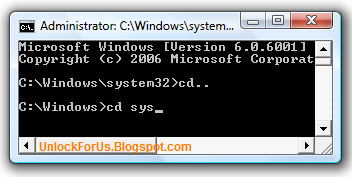
For example as shown in the picture above, going to c:\windows directory and typing "cd sys". By pressing Tab twice or more you can see the possible directories beginning with "sys". These are:

  • System
  • System32

You can also verify that by using the command: dir sys* /ad

Let's try another.

Open Command prompt as administrator (Start Search > "cmd" > CTRL+Enter)

cd \Win + (Tab Key) + \Pe + (Tab Key) + \w + (Tab Key) + \d + (Tab Key)

equals C:\Windows\Performance\WinSAT\DataStore>

To have an idea Please Read more here.

Note: You cannot use wordpad command because the default search Path for executables are

PATH=C:\Windows\system32;C:\Windows;C:\Windows\System32\Wbem

Click here for more details

Enjoy!!!