Tuesday, March 23, 2010

Add Disk Defrag, Check Disk and Disk Cleanup to Disk Context menu

rightclickmenu 

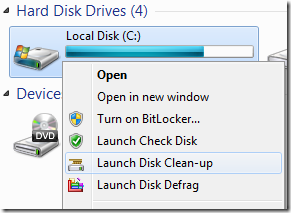
How to Add the options to Context Menu in Windows 7 and Vista

Open the new version of WinBubble, go to Tools Tab and Click the Disk option

diskcleanup

Use the settings below:

Name: Launch Disk Defrag             (or any name)

Command: cleanmgr.exe /d %1

Icon: C:\Windows\System32\cleanmgr.exe, 2      (Windows 7 only)

Click ADD to apply the settings

Name: Launch Disk Clean-up            (or any name)

Command: "C:\Program Files\WinBubble\WinBubble 2\Tools\AdminTools.exe" /defrag %1            (Location of WinBubbles)

Icon: C:\Windows\System32\defrag.exe, 0      (Windows 7 only)

Click ADD to apply the settings

Name: Launch Check Disk            (or any name)

Command: "C:\Program Files\WinBubble\WinBubble 2\Tools\AdminTools.exe" /cmd chkdsk /r /f %1  

Icon: C:\Windows\system32\imageres.dll,101      (Windows 7 only)

Click ADD to apply the settings

THAT’S IT!

Definitions

Disk defrag is a program designed to increase the speed of accessing the files by rearranging them. The main purpose is to optimise the time it takes to read and write from the disk.

It improves startup times and many more.

Defrag.exe offers more options and control for defragmentation process such as performing a full defragmentation and many more.

C:\Windows\system32>defrag /?
Description:

        Locates and consolidates fragmented files on local volumes to
        improve system performance.

Syntax:

      defrag <volumes> | /C | /E <volumes>    [/H] [/M | [/U] [/V]]
      defrag <volumes> | /C | /E <volumes> /A [/H] [/M | [/U] [/V]]
      defrag <volumes> | /C | /E <volumes> /X [/H] [/M | [/U] [/V]]
      defrag <volume>                      /T [/H]       [/U] [/V]

Parameters:

Value   Description

/A      Perform analysis on the specified volumes.

/C      Perform the operation on all volumes.

/E      Perform the operation on all volumes except those specified.

/H      Run the operation at normal priority (default is low).

/M      Run the operation on each volume in parallel in the background.

/T      Track an operation already in progress on the specified volume.

/U      Print the progress of the operation on the screen.

/V      Print verbose output containing the fragmentation statistics.

/X      Perform free space consolidation on the specified volumes.

Examples:

        defrag C: /U /V
        defrag C: D: /M
        defrag C:\mountpoint /A /U
        defrag /C /H /V

C:\Windows\system32>

CHKDSK is a command Line disk tool that verifies the integrity of your file system structure and the hard disk drive. Read here for more information.

Disk Cleanup (cleanmgr.exe) is a maintenance utility designed to free up disk space and remove unnecessary files. Read here for more information.

HOPE THIS HELPS! ENJOY USING WINBUBBLES!

WinBubbles, New Free Windows 7 Customization Utility and Vista Tweaking Tool in many ways

In just few clicks, the freeware tool will help you to customise and tweak your Windows 7 (and Vista) easily. Its main features cover Maintenance, Hidden Windows Utilities, Customisations, Security and Optimizations for System Performance.

winbubblesv2

The New version incorporates lots of new features and brings tough challenges because of the old code. 

The possibilities of Tweaking are now endless…

Read here first: Using WinBubbles as TweakUI for Windows 7 and Vista

WinBubble is an easy-to-use little application for tweaking and customization  that focuses on enhancing your Windows 7 and Vista experience for free (32-bit and 64-bit version).

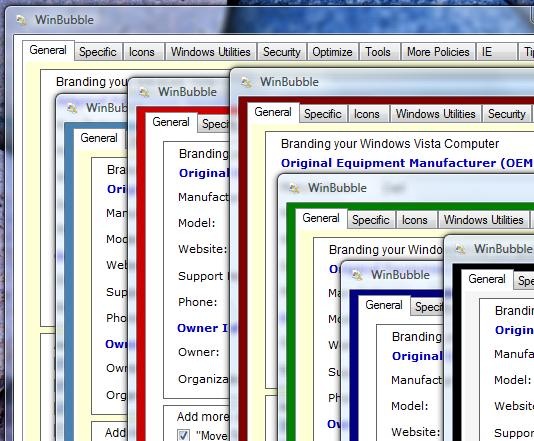
WinBubble Version 2 Screenshots

The new version has tons of small useful features compiled into one location. The freeware customisation utility can be customize by the user themselves!
winbubbles

winutilities

INSTALLER SETUP:

DOWNLOAD HERE (recommended)

DOWNLOAD THE NEW PORTABLE VERSIONS

Pre-configured portable versions! (WinBubble 2.0.3.7)

http://WindowsForUs.com?tod/WinbubblesBlack.zip

http://WindowsForUs.com?tod/WinbubblesBlue.zip

http://WindowsForUs.com?tod/WinbubbleGreen.zip

http://WindowsForUs.com?tod/WinbubblesMaroon.zip

http://WindowsForUs.com?tod/WinbubblesRed.zip

http://WindowsForUs.com?tod/WinbubblesSteelBlue.zip

http://WindowsForUs.com?tod/WinbubblesWhite.zip

http://sites.google.com/site/winbubbles/

Thank you!

WinBubble 2.0.3.7 (Version 2 Build 3 Revision 7)

  • WinBubble Admin Tools 1.0.1.1 was updated
  • Launching of WinBubble via Ease of Access Center has been updated (no need to reboot)
  • Now supports Smart Screen Capture using Keyboard Shortcut
  • File-Type Icon Customization Error Messages was removed
  • Adding of My Computer Icon to Desktop was updated
  • Password Error while Launching the application while on the Welcome Screen has been fix.
  • Installation Path error for the setup was fix
  • Auto-Patch was added

NEW FEATURES

WinBubble 2.0.3.2 Release Date: February 24-29
Its already more than 17 months (519-520 days) since the last version of WinBubble (version 1.76).

Many of them are First on its kind (I hope so)....
Some of the design was based on the new wake up calls from my friends on Facebook. Great!

Thanks Everyone!

Again, Ideas will always be apart of innovation.

Core NEW Features:

  • Welcome Screen Logon Features
  • Automatic loading and browsing of bitmap files for OEM Customization
  • Automatic Wallpaper Conversion
  • File Type Customisations
  • New Tools in WinBubble Tweaking Toolbox
  • Windows Utilities and More Policies Tab
  • My Computer and Control Panel Items Tool
  • File-type and Open With Context Menu Customization
  • The program now is Password protected
  • Changing the Color combination of the Utility
  • Windows 7 support was added
  • Right-Click Menu for the important settings was added
  • WinBubble Admin Tools was added
  • Bug Fixes

Windows 7 Main Features:
Adding Icons to Right-Click Menus
Open With Menu Items and File Type Context Menu Editor
Automatic conversion of Jpeg Images in Windows 7 (tested on 3400 different file sizes)
Logon Background Wallpaper Customisations while on the Welcome Screen
Welcome Screen Text Shadow Customization and Disabling the Start-up sound was added
Access to Windows 7 Hidden Utilities was added
Documentations for Windows Tools was added

Windows Vista only Feature
Shutdown Button Settings Tool
Turning Off the Glass Effect using the Desktop Window Manager was updated

Windows 7 and Vista Features
(Enhanced) Display recent Programs in Start Menu Feature
Open With Menu Items and File Type Context Menu Editor
Adding Items to Desktop, My Computer and Control Panel
Command Prompt Background and Text Color Customizations
Ability to Change WinBubble Background Color
WinBubble Admin Tools Added
Restore Point Creator was updated
User Accounts CP Tool was added

New Windows 7 and Vista Policies/Restrictions

Taskbar and Start Menu
Add Run Command to Start Menu
Clear Recent Documents History on Exit
Clear Recent Programs List for New Users
Remove Access to Right-Click Menus for the Taskbar
Prevent the User fom adding or removing Toolbars
Prevent users from resizing the Taskbar
Prevent the user from rearranging toolbars
Lock the Taskbar

Desktop
Hide and Disable All Items on Desktop
Prevent Adding, dragging, dropping and closing the taskbars toolbars
Prohibit adjusting desktop toolbars

Machine
CD and DVD: Deny Read Access
CD and DVD: Deny Write Access
Floppy Drives: Deny Read Access
Floppy Drives: Deny Write Access
Removable Disks: Deny Read Access
Removable Disks: Deny write Access
Removable Disks: Deny All Access

Control Panel
Restrict Access to Control Panel

Display Settings
Remove Display in Control Panel
Hide Appearance and Themes Tab
Hide Desktop Tab
Hide Screensaver Tab
Hide Settings Tab
Prevent Changing of Wallpapers

Restrict Microsoft Management Console
Computer Management
Disk Management
Device Manager
Shared Folders
Advance Windows Firewall

System
Prevent access to command prompt and cmd script processing
Prevent access to Registry Editor
Prompt for Password on resume from hibernate / suspend

CTRL+ALT+DEL Options
Remove Change Password
Remove Lock Computer
Remove Start Task Manager
Remove Logoff

Windows Explorer
Remove Security Tab
Hide All Fix Drives
Remove CD Burning Features

OTHER FEATURES: CLICK HERE

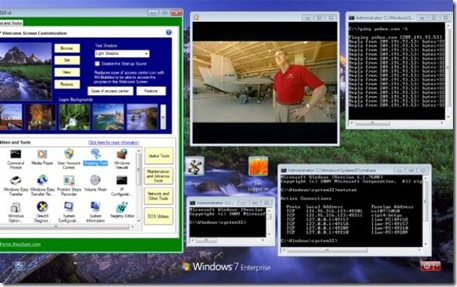
Coolest Feature: Opening WinBubbles in Windows 7 Welcome Screen
WelcomeScreenCustomizations2

Even If your not a dedicated geek or just starting to learn to customize and tweak your computer, WinBubbles is like a giveaway software (free) that enables you to change registry settings for tweaking and hacks much easier and faster.

Not Just For the Geeks But For All!

ENJOY USING WINBUBBLES!
Friday, March 19, 2010

Simple way to change the Start Menu Button Settings in Windows Vista

shutdown

Easy way to modify the startmenu power button to shutdown or hibernate mode in Windows Vista.

During the Vista days, many users always mistaken the option to shutdown.

The new version of WinBubbles easily change the setting in just one click!

How? Open the Tool and go to the specific Tab.

Click the “Shutdown Button Settings” to open the new feature.

Choose which option do you want to set: hibernate or shutdown mode.

That’s it!

To change the settings manually, read here.

Hope this helps!


How to Change the Command Prompt Background and Text Color

cmd

The new version of WinBubbles is still a freeware application designed for Windows 7 and Vista that can customized, add restrictions and Tweak the OS in different ways.

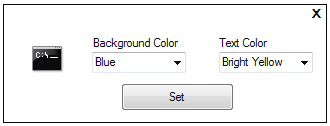
For DOS Geeks, this is another new feature of WinBubbles that easily change the default color of the CMD background and text.

Not Just for the Geeks but for all!

cmdprompt

Open the Specific Tab and find the option in the Tweaking Toolbox and you’ll see the options above.

Choose the color and Click Set.

Very Easy….

It’s Free! Enjoy!

Thursday, March 18, 2010

The Four Hidden Google Chrome Icons

Did you know that there are three more hidden Cool Icon in the application itself?

googlechrome

I’ve discovered the icons using the new version of WinBubbles.

Using the File-Type Icon Customisation feature:

iconschange

Great Right?

Read here

Firefox, Safari and Opera Hidden Cool Icons too!

operaicons

[Enhanced] Display/Clear the Recent Programs in Windows 7 and Vista Start Menu

startmenu This is one of the unique features of WinBubbles that enhances the usual clearing of recent program list in the Start Menu.

Same with Google in their Web Browser Google Chrome, the new version of WinBubbles aims to give “suggestions” on several features that Windows 7, Vista and the future version of Windows should have.

It’s also my interest to help users understand more about the world of computers we live today.

Windows 7 Settings

storedisplay 

Vista Start Menu Settings

vistasettings

Using the new version of WinBubbles, you can clear these items and restore them back if you need them.

Clear the Icons

clear

Re-Display the Program List

redisplay 

Simply Open the tool and select the option at the Desktop Customizations group as shown to Apply the tweak.

displayrecentprograms

Note: You need to Log-Off and Log-In again to see the results.

There are so many items that you can access easily at the Start Menu properties, most of them are really simple and helps a lot.

Thanks for reading!


Tuesday, March 16, 2010

How to Use Disk Cleanup Maintenance Utility in Windows 7 and Vista

Disk Cleanup (cleanmgr.exe) is a maintenance tool designed to free up disk space and clear unnecessary files on computers hard drive.

The utility first scans and search the hard drive for files that you can safely delete.

diskcleanup

Afterwards, you can choose to remove the specific files that is no longer needed.

diskcleanup

How to open the tool

You can use the Start Menu search by typing “cleanmgr”

startmenusearch 

You can also use the new version of WinBubbles to open the tool located at Windows Utilities Tab > Maintenance and Advance Tools

winbubbles

Understanding Disk Clean up Options

Downloaded Program Files

These are ActiveX controls and Java applets downloaded automatically from the Internet.

Temporary Internet Files folder

This is where your viewed websites stored for offline and quick viewing.

Hibernation File Cleaner

This file contains all the information about the state of your computer before it enter hibernation mode. If you do not use the hibernation power setting you can remove this file to free up more disk space.

Things to Remember: This option will disable hibernation and the option will be removed in your Start Menu. You can re-enable the option by using WinBubble or using the command line interpreter. Read here

Recycle Bin

The recycle bin contains files you have deleted from your computer and not permanently removed until you empty the Recycle Bin.

Setup Log Files

File created by Windows.

Temporary Files

Third party Softwares sometimes store temporary information in a TEMP folder. Before a program closes, It usually deletes this information. You can safely delete temporary files that have not been modified in over a week.

Thumbnails

Windows keeps a copy of all your picture, video, and document thumbnails so they can be displayed quickly when you open a folder. If you delete these thumbnails, they will be automatically recreated as needed.

Files used for Windows Error Reporting and Solution Checking

- Per user archived

- System archived

- System queued

Tip: Command Line option to Save the selected settings

cleanmgr /sageset:3

Using the /sageset:n where n is any number from 0 to 65535

The option displays Disk Cleanup settings Window

sageset

Select the options and Press OK to save

Note: Use the same command to modify the saved settings

Running the Saved options

cleanmgr /sagerun:3

sagerun:n where n is the assigned number from sageset parameter

More options Tab

Programs and Features

You can free more disk space by removing programs that you do not use.

System Restore and Shadow Copies

You can free more disk space by removing all but the most recent restore point.

In some editions of Windows Vista and 7, the disk might include file shadow copies and older Windows Complete PC Backup images as part of restore points. This information will also be deleted.

Hope these helps!