Thursday, March 13, 2008

Eject your CD/DVD using a Keyboard Shortcut

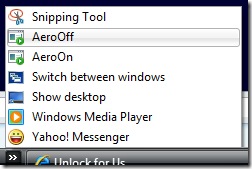
Windows Vista has an amazing built-in feature to launch programs located in Quick Launch bar using a keyboard shortcut.

Just use Win+(Position of the icon), e.g. Win+1 To Turn off Aero using a Keyboard Shortcut. That's it! Using this feature you can now Eject CD/DVD easily. How?

1. Download Winflog eXTreMe, Extract the ZIP file and then locate the file "ControlCD.exe".

2. Create a shortcut and Drag it to Quick Launch bar.

3. To launch the application, press Win + Position of the icon.

Note: Don't forget, Shortcut keys are limited (1-9 and 0 only).

If this doesn't work, ControlCD is not yet Activated, Open Winflog Extreme and click "Eject CD" to Add the Right-click -Menu entry.

Enjoy!

Some Articles:

Windows Vista Tips, Tricks, How to, Help-guides and Unlocks

How To Activate Flip 3d using the Middle Mouse Button / Scroll Wheel Button

How To Turn Off Aero using the Middle Mouse Button

How to Launch Applications using the Middle Mouse Button

Eject your CD/DVD using the Middle mouse button

Monday, March 10, 2008

How to Enable/Disable Task Manager option in Windows Vista

Have you ever experienced a virus that disables the Task Manager? Then after running an anti-virus, the virus has been removed but still Task Manager is disabled.

disabled

Using Winbubble you can re-enable this options easily. Just go to Security Tab, Uncheck the Task Manager option and then, click the Apply button. That's it!

Related Articles:

Unlocking WinBubble Part 3 *Securing your desktop

Unlocking WinBubble Part 6 *More Security options

Unlock Me! Disabling USB drives/Storage

[Vista] Hibernate Button is gone

Monitor attempts to access and change settings in Windows Vista

Thursday, March 6, 2008

Advanced: How to Create/Generate a New GUID using Vb.Net, C# and Vb.Script

guid

Globally Unique Identifier or GUID is a 128-bit integer (16 bytes) that is used by some software applications across all computers and networks in order to provide a reference number which is unique or to identify a particular component. Because of this there's a very low probability that any two or more component has the same value.

GUID is also used in Windows Registry.

Example:

Internet Explorer {871C5380-42A0-1069-A2EA-08002B30309D}

Network {F02C1A0D-BE21-4350-88B0-7367FC96EF3C}

Computer {20D04FE0-3AEA-1069-A2D8-08002B30309D}

Web Application: GUID Generator

guidgenerator

Try here: http://www.windowsforus.com/guidgenerator/ 

Vb Script

Set TypeLib = CreateObject("Scriptlet.TypeLib")
NewGUID = TypeLib.Guid
WScript.Echo(left(NewGUID, len(NewGUID)-2))
Set TypeLib = Nothing

C#

private void button1_Click(object sender, EventArgs e)
{
MessageBox.Show("GUID: {" + Guid.NewGuid().ToString()+ "}");
}


Visual Basic .Net 2008

Private Sub GenerateNewGUID()
Dim xGUID As String = System.Guid.NewGuid.ToString()
MessageBox.Show("{" & xGUID & "}")
End Sub


So, What's the use of this GUID to us? Sooner or later, As you study more and more about Registry Customizations... I'm sure you'll be reading this article again.

Sample Applications: Another Way to Add Icons to Desktop

Enjoy!


Read more Articles: Windows Vista Tips, Tricks and Tweaks

Wednesday, March 5, 2008

Internet Explorer 7: Safer Than Firefox, Opera and Safari

The first major version of IE in over 4 years. Large portion of this program have been significantly rework. Microsoft dubbed it as the  "most secure" version of Internet Explorer to date.

CENZIC APPLICATION SECURITY TRENDS REPORT – Q4, 2007, Internet Explorer has the smallest vulnerabilities by a 22% margin compared to Firefox. Surprised?

IE SAFER

Opera had the most reported vulnerabilities, 38% and surprisingly Firefox was next by a 6 percent margin.

"Vulnerabilities in Web browsers were concentrated among four popular technologies - Internet Explorer, Mozilla Firefox, Opera, and Safari. Showing a similar trend as Q3 2007, the Opera Web browser with 38 percent had the most reported vulnerabilities during the Q4 time period, with Firefox coming in second by a 6 percent margin. The chart below shows the percentage of the total browser vulnerabilities associated with each product. Unlike previous quarters, less vulnerabilities were reported in Internet Explorer than in Opera, Firefox, or Safari." - Source: Cenzic Application Security Trends Report – Q4, 2007, Cenzic Inc.

To download the complete documentation, click here

Microsoft is trying to fix and innovate Internet Explorer one by one, that's a good thing. It will benefit the Internet users as long as there's a competition.

Some users said they will wait for the upgraded version of Firefox, cool!!!

Thanks to Softpedia for publishing the article...

Featured Articles:

Internet Explorer 7 Top Ten features

Windows Vista Tips, Tricks, Hacks, How-To, Guides, News and Tweaks

Windows Xp, Web, Soft Review and Hacks

UnlockMe! "Windows has blocked some startup programs"

How to Remove/Disable Start-up programs in Windows Vista

Tuesday, March 4, 2008

UnlockMe! "Windows has blocked some startup programs"

"After I installed a program, I got this message..."

message

When you start your Windows Vista computer, a warning message appears and says that some startup programs has been blocked.

This problem occurs when a startup program that has User Account Control (UAC) restrictions tries to launch during startup or logon process. 

"User Account Control is a set of infrastructure technologies that helps prevent malicious programs, sometimes called "malware," from damaging your computer - Microsoft"

Solutions:

A. I know this program: Run the blocked program when Windows Vista Starts.

 runblock

1. Click the Blocked startup programs icon
2. Choose Run blocked program > click the program in the list that you want to unblock.

B. I don't know this program: Remove the program when Windows Vista Starts.

1. Click the Blocked startup programs icon
2. Choose Show or remove blocked startup programs and follow the steps indicated in the previous article: How to Remove/Disable Start-up programs in Windows Vista

That's it!

Enjoy!!!

Featured Articles:

Add "Hide/Show My Computer" in Network Icon Context Menu

Windows Vista Tips, Tricks, Hacks, How-To, Guides, News and Tweaks

Windows Xp, Web, Soft Review and Hacks

Sunday, March 2, 2008

How to Remove/Disable Start-up programs in Windows Vista

The longer you use your computer and installing numerous applications, the slower it boots up. This is because bloatwares uses large amounts of system resources during Windows start-up.

Solution: Disable or Uninstall them! There are several ways to disable programs when Windows Vista Starts. However, Most of them are redundant.

Disable Start-Up Programs using the Software Explorer in Windows Defender

1. In the Control Panel, open Windows Defender, Select Tools, and then click Software Explorer.
2. Select Startup Programs from Category.
3. To remove a program from startup, select the program and click the Remove button. Use the Disable button to temporarily stop the program from starting when Windows starts. To make them active again, simply select the program and click the Enable button.

software explorer

4. As easy as it sounds though, However, you cannot disable some programs using software explorer because the "Remove, Disable and Enable Buttons" are grayed out. So, Use the next tutorial.

Disable Start-Up Programs using MSCONFIG.EXE (System Configuration)

1. Press Win+R > type "msconfig"

2. Go to Startup Tab > Uncheck the program, and then click the Apply button.

msconfig

3. You need to Restart your computer to apply the changes.

4. After Reboot, You'll get a message "Windows has blocked some startup programs". To Stop the annoying message, Click the icon in the notification area/system tray, select "Run blocked program" and then "System Configuration Utility".

system configuration

5. Check the checkbox: "Don't show this message or annoy me again when Windows starts"

That's It!

Featured Articles:

"Access denied", opening a folder in Windows Vista

Important Changes to Windows Vista Service Pack 1

How to Restore DVD Drive Label / Names in Windows Vista

[Vista] Hibernate Button is gone

Windows Vista Tips, Tricks, Hacks, How-To, Guides, News and Tweaks

Saturday, March 1, 2008

Add "Hide/Show My Computer" in Network Icon Context Menu

Hide and show your computer inside the network in just two clicks.

hideme

Now, you will learn how to do it manually and automatic by using Winbubble.

Ever wonder why and how these entries are being made? Read this first: Customizing Context Menu

Next, Read this: UnlockMe! Hide your computer in the Network

How to add these entries?

1. From Command Elevation Template, use: net config server /hidden:
2. The seventh line should be like this:

objApp.shellExecute "cmd.exe", " /c net config server /hidden:" & chr(34) & strArg & chr(34), , "runas", 1

If don't want to commit a mistake, just Download the Vb Script file. Right-Click > Save Link/Target As

3. Open WinBubbles > Miscellaneous Tab > Click the Windows Explorer (All Files) Button > Type any name e.g. Hide My Computer > Click the Browse Button > type *.vbs or simply *.*, locate and Click the VB Script File to set the Path.

Name: Hide My Computer

Command: wscript "Path" yes

Example: wscript "C:\Downloaded\WinBubble 1.76\Tools\hidecomp.vbs" yes

Finally, Edit the Command Field by adding wscript, qoutes in the path and yes > Click the Add Button. That's it!

4. To Add the "Show My Computer" Context Menu, Please repeat the #3 procedure and use the settings below:

Name: Show My Computer

Command: wscript "Path" no

Example: wscript "C:\Downloaded\WinBubble 1.76\Tools\hidecomp.vbs" no

Finally, Edit the Command Field by adding Space plus "no" > Click the Add Button. Enjoy!

For Windows XP, .Net Framework is Needed.

Download WinBubbles

1. Open "Notepad.exe" and paste this:

Net config server /hidden:yes

2. Save the file as "Hide.bat"

3. Repeat the steps in #1 and use this:

Net config server /hidden:no

4. Save the file as "Show.bat"

5. Open WinBubble > miscellaneous tab > Click the "Network" button > type "Hide My Computer" or any in the name > Click the browse button and locate "Hide.Bat"

Note: If you want to backup first, click the Backup button...

Name: Hide My Computer
command: [path of Hide.bat]

Click the Add button...

6. To Add "Show my Computer", repeat the steps in #5 and use the the file "Show.Bat".

Name: Show My Computer
command: [path of Show.bat]

Lastly, Click the Add button... That's it!!!

Enjoy!!!

For more Tips and Tricks:

Windows Vista Tips, Tricks, Hacks, How-To, Guides, News and Tweaks

Windows Xp, Web, Soft Review and Hacks

How To Activate Flip 3d using the Middle Mouse Button / Scroll Wheel Button

How To Turn Off Aero using the Middle Mouse Button

How to Launch Applications using the Middle Mouse Button

Eject your CD/DVD using the Middle mouse button

Add "Hide This File" and "Hide This Folder" to your Right-Click / Context Menu in Windows Vista and XP